
Accidentally deleting an important photo can be frustrating, especially when you realize you still need it later. Fortunately, deleting an image does not always mean it is gone permanently.
Depending on where the image was stored and how long ago it was deleted, you may be able to recover it from a trash folder, cloud backup, recently deleted album, or another copy of the file.
In this guide, we explain how to retrieve deleted images from smartphones, computers, cloud services, and other common storage locations.
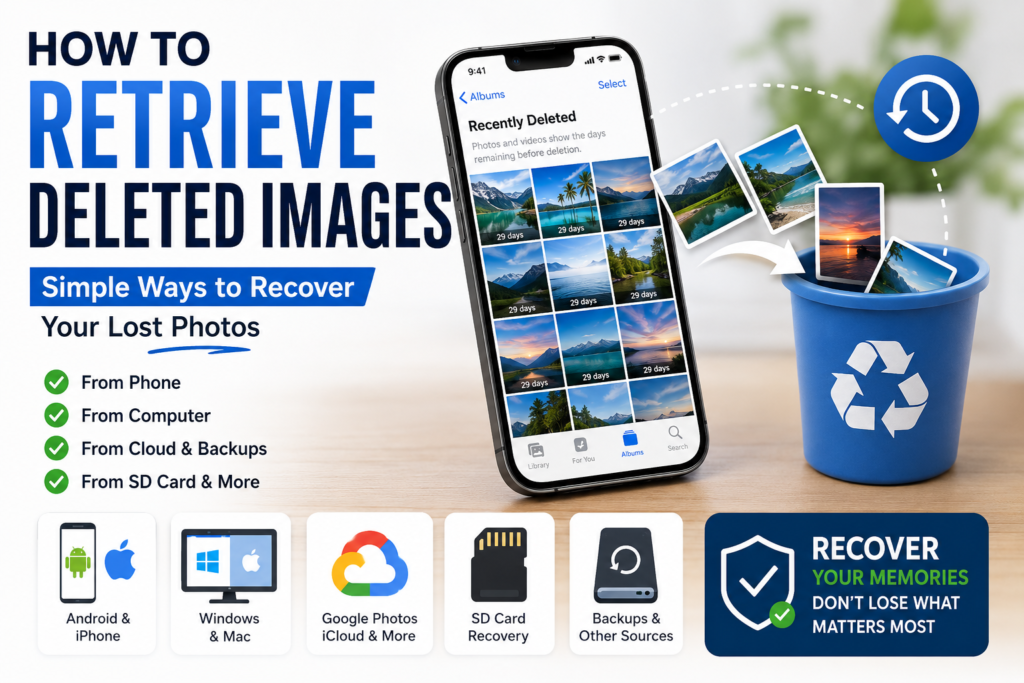
How to Retrieve Deleted Images
The best recovery method depends on the device or service where the image was originally stored. Before trying complicated recovery software, check the built-in recovery options first.
Start with these locations:
- Recently Deleted or Trash folder
- Recycle Bin
- Google Photos or iCloud
- Cloud storage backups
- Device backups
- External storage such as an SD card
- Other devices where the image may have been synchronized
If the image is not available in any of these locations, specialized data recovery software may be an option.
1. Check the Recently Deleted Folder
The first thing you should do after accidentally deleting an image is check the device’s Recently Deleted or Trash folder.
Many smartphones and photo applications temporarily keep deleted photos before permanently removing them.
Open your Photos or Gallery application and look for folders such as:
- Recently Deleted
- Trash
- Bin
- Recycle Bin
If you find the image there, select it and choose the Restore option.
The exact retention period depends on the device or service, so it is better to check as soon as possible.
2. Recover Deleted Images From Google Photos
If you use Google Photos, deleted images may be moved to the Trash rather than immediately removed.
Open Google Photos and check the Trash section. If the deleted photo is still available, you can select it and restore it.
This is particularly useful if your photos were previously backed up to your Google account.
However, if the image has already been permanently deleted from the Trash, the normal restore option may no longer be available.
3. Check iPhone’s Recently Deleted Album
On an iPhone, deleted photos are normally moved to the Recently Deleted album in the Photos app.
Open the Photos app and find the Recently Deleted section. After authenticating if required, select the photos you want to recover and use the recovery option.
If you use iCloud Photos, also make sure you are signed into the correct Apple Account. Photos synchronized through iCloud can appear across your connected Apple devices.
4. Check the Recycle Bin on Your Computer
If you deleted images from a Windows computer, check the Recycle Bin before using recovery software.
Open the Recycle Bin and search for the deleted image. If you find it, right-click the file and choose Restore.
The file will normally return to its original location.
On a Mac, check the Trash folder. If the image is still there, you can move it back to its original location.
5. Look for a Cloud Backup
Sometimes the easiest way to recover a deleted image is to find another copy.
Check services where your photos may have been automatically backed up, such as:
- Google Photos
- iCloud Photos
- OneDrive
- Dropbox
- Other cloud storage services
You may also find the image in a synced folder, shared album, or another device connected to the same account.
This is why cloud backups can be extremely useful when recovering accidentally deleted photos.
6. Check Your Phone’s File Manager
Sometimes an image may have been deleted from the Gallery app but another copy could still exist in the phone’s storage.
On Android devices, open the file manager and look through folders commonly used for images, such as:
- DCIM
- Pictures
- Download
- Screenshots
- WhatsApp Media
- Messenger or other app media folders
The exact folder structure varies between devices and applications.
Be careful when deleting or moving files while searching because you do not want to accidentally remove another copy.
7. Check Messaging Apps and Social Media
If you originally received or sent the image through a messaging application, there may be another copy available.
Check conversations in applications such as WhatsApp, Telegram, Messenger, or email.
For example, if someone sent you a photo and you later deleted it from your phone, the image may still be available in the original conversation or on the sender’s device.
This can sometimes be much easier than attempting technical data recovery.
8. Check Your Backups
If you regularly back up your phone or computer, an older backup may contain the deleted image.
Possible backup sources include:
- iCloud backups
- Computer backups
- Android backups
- External hard drives
- NAS devices
- Cloud storage
- Manual photo backups
Before restoring an entire backup, check what it contains and consider whether restoring it could replace newer data.
A backup is most useful when the image existed at the time the backup was created.
9. Recover Images From an SD Card
If the deleted photos were stored on an SD card, recovery may still be possible.
The most important step is to stop using the SD card as soon as you notice the deletion.
Do not continue taking photos, downloading files, or copying large amounts of data onto it. New data can overwrite the storage space previously occupied by deleted files.
You can then connect the card to a computer and use reputable data recovery software to scan it.
Recovery is not guaranteed, but stopping further use can improve the chances of finding recoverable files.
10. Use Data Recovery Software
If the image is not available in a Trash folder, backup, cloud service, or another device, specialized recovery software may help.
Recovery applications scan storage for file information that may still remain after deletion.
The results depend on several factors, including:
- How long ago the image was deleted
- Whether new data has overwritten it
- The type of storage being used
- Whether the device uses encryption
- Whether the storage has been formatted
- How the deletion occurred
For this reason, recovery software should generally be considered a later step rather than the first thing you try.
Can Permanently Deleted Images Be Recovered?
Sometimes, but there is no guarantee.
When a file is deleted, the operating system may mark the storage space as available for reuse rather than immediately removing every piece of the file’s underlying data.
If that space has not been overwritten, recovery software may sometimes find parts or all of the deleted image.
However, modern smartphones and storage systems can make recovery considerably more difficult. Encryption, flash storage behavior, automatic cleanup, and overwritten data can all affect the result.
Therefore, permanently deleted does not always mean recoverable.
What Should You Do Immediately After Deleting a Photo?
If the image is important, avoid making the situation worse.
Stop using the storage if possible
Avoid taking new photos, installing applications, downloading large files, or transferring data onto the affected storage.
Check the Trash first
This is usually the fastest and safest recovery method.
Check cloud services
Look for backups, synchronized folders, and online photo libraries.
Look for another copy
Check messaging applications, computers, external drives, shared albums, and other devices.
Consider professional recovery for critical files
If the photos are extremely important and ordinary recovery methods fail, a professional data recovery service may be more appropriate than repeatedly experimenting with the storage device.
Why Deleted Images Sometimes Cannot Be Recovered
There are several reasons a deleted image may become impossible to recover.
The storage space was overwritten: New files may have occupied the space previously used by the deleted image.
The file was permanently removed: Some systems and applications may securely remove data rather than simply moving it to a trash folder.
The device was reset: A factory reset can make recovery substantially more difficult.
The storage has failed: Physical damage to a storage device can prevent normal recovery software from accessing the data.
The backup did not contain the image: If the photo was deleted before the relevant backup was created, that backup may not help.
How to Prevent Losing Photos in the Future
The easiest way to recover important photos is to avoid having only one copy in the first place.
Consider keeping important images in at least two locations.
For example:
Phone → Cloud backup → External storage
You can also periodically copy important photos to a computer or external drive.
Automatic cloud photo backup is particularly useful because it can create a second copy without requiring you to manually transfer every image.
Final Thoughts
Knowing how to retrieve deleted images can save you from losing important memories, documents, or other valuable photos.
Start with the simplest options: check the Recently Deleted folder, Recycle Bin, cloud storage, backups, and messaging applications. If the image is not there, avoid using the affected storage and consider a reputable recovery tool.
Most importantly, do not assume that a deleted photo is immediately gone forever—but also do not assume it can always be recovered. The sooner you stop using the affected storage and start checking available backups, the better your chances may be.
Regular backups remain the best long-term protection against accidental photo deletion.