
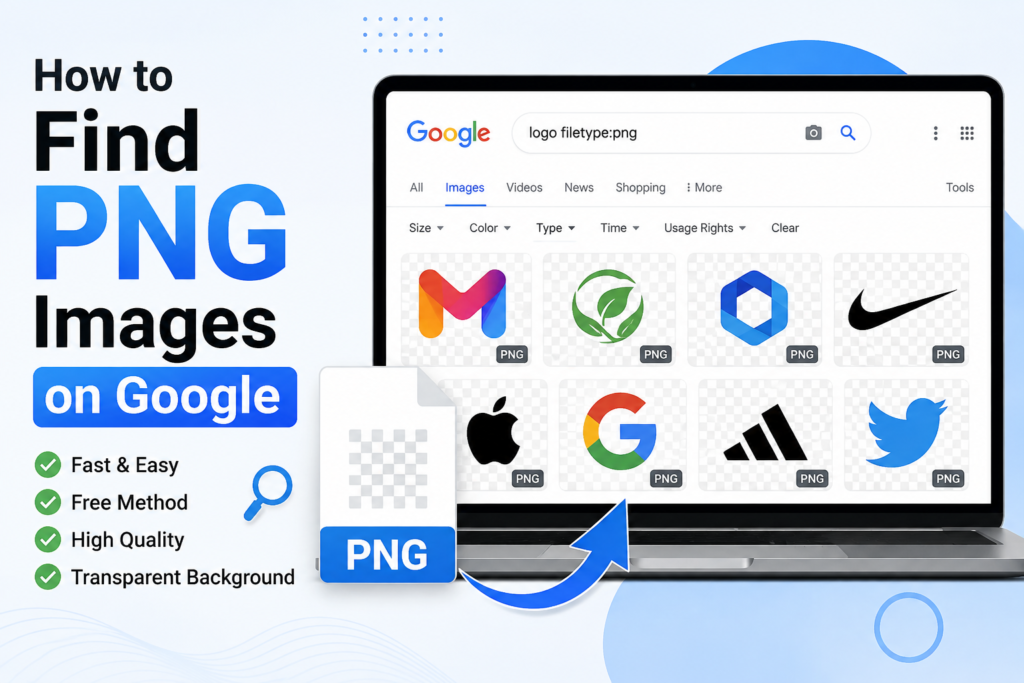
Looking for a PNG image can be frustrating. You may search Google for an image, but the results can include JPG files, screenshots, WebP images, and other formats.
If you specifically need a PNG image, there are a few simple Google search techniques that can help you find the right files faster.
In this guide, you will learn how to find PNG images on Google using simple search methods.
What Is a PNG Image?
PNG stands for Portable Network Graphics.
PNG images are popular because they can support transparent backgrounds. This makes them useful for logos, icons, graphics, illustrations, presentations, websites, and designs.
For example, if you need a logo without a white background, a PNG file is often a good choice.
1. Use Google Images
The easiest way to find PNG images is through Google Images.
Go to Google and search for the image you need.
For example:
coffee cup PNG
Then click Images at the top of the search results.
Google will show you images related to your search.
However, simply adding “PNG” does not always guarantee that every result is actually a PNG file. So, you can use a more specific search technique.
2. Use the filetype:png Search Operator
One of the best ways to find PNG files on Google is to use the filetype: search operator.
For example, search:
coffee cup filetype:png
Google will try to show results that use the PNG file format.
You can use this technique for almost anything.
For example:
facebook logo filetype:png
tree icon filetype:png
arrow icon filetype:png
business logo filetype:png
social media icons filetype:png
This is one of the simplest ways to make your Google image searches more precise.
3. Combine Keywords With filetype:png
You can make your search even more specific by combining several keywords.
For example, instead of searching:
car PNG
try:
red car transparent PNG filetype:png
Or if you need a technology icon:
technology icon blue PNG filetype:png
The more specific your search terms are, the easier it becomes to find something close to what you need.
4. Search for Transparent PNG Images
Sometimes you don’t just want a PNG file. You want a PNG with a transparent background.
This is especially useful for logos, products, people, objects, and icons.
Try searches such as:
phone transparent PNG
laptop transparent PNG
football player transparent PNG
logo transparent PNG
You can also combine this with the file type operator:
laptop transparent filetype:png
Keep in mind that a PNG file can still have a solid background. The PNG format itself does not automatically mean the image has transparency.
5. Use Google Images Filters
Google Images also provides filters that can help narrow down results.
After searching for an image, look for options such as Tools.
Depending on the search and Google’s current interface, you may see filters for things such as image size, color, and type.
For example, the Color option can be useful when you are looking specifically for images with transparent-looking backgrounds or a particular color.
Filters can save time when your search produces hundreds or thousands of results.
6. Search a Specific Website
If you trust a particular website and want to find PNG images from that site, use the site: operator.
For example:
site:example.com logo filetype:png
This tells Google to look for PNG files related to your search on that particular website.
You can replace example.com with the website you want to search.
This technique is especially useful when you already know where you want to find the image.
7. Check the Image Before Using It
Finding a PNG image does not automatically mean you can use it anywhere.
The image may be protected by copyright or may have restrictions on commercial use.
Before downloading an image for your website, advertisement, YouTube video, product, or business project, check:
- Who created the image?
- Where was it originally published?
- Is it free to use?
- Is commercial use allowed?
- Do you need to provide attribution?
- Are there any license restrictions?
This is particularly important when using images for business purposes.
8. Make Sure It Is Actually a PNG
Sometimes an image search result may look like a PNG but actually be another format.
If the exact file format matters, open the image or visit its source page and check the file information.
You can also download the image and check its file extension.
A genuine PNG file normally ends with:
.png
Remember that simply seeing the word “PNG” in a webpage title does not guarantee that the actual image file is PNG.
9. Use Google Search for Specific PNGs
You can combine all these techniques to create very targeted searches.
For example:
minimalist logo transparent filetype:png
black arrow icon filetype:png
social media icon transparent filetype:png
red heart transparent PNG filetype:png
business person transparent filetype:png
This approach is much better than repeatedly scrolling through random image results.
10. Don’t Forget Image Copyright
Finding an image on Google does not mean that Google owns the image or that the image is free to use.
Google is mainly helping you discover images that exist on websites across the internet.
If you need an image for your website or business, always check its usage rights before using it.
For completely safe projects, consider using reputable stock-image websites or image libraries that clearly explain their licenses.
Quick Google PNG Search Examples
Here are some useful searches you can copy and modify:
cat filetype:png
logo filetype:png
car transparent filetype:png
arrow icon filetype:png
business icon filetype:png
laptop transparent PNG
social media icons filetype:png
flower transparent filetype:png
technology illustration filetype:png
Final Thoughts
Finding PNG images on Google is much easier when you use the right search operators.
The most useful trick is:
your keyword filetype:png
You can make your search even better by adding words such as transparent, icon, logo, illustration, or a specific color.
Just remember one important thing: finding an image is not the same as having permission to use it. Always check the image’s copyright and license before using it for your website, business, or other public projects.
Read more such blog on Image Search Techniques