
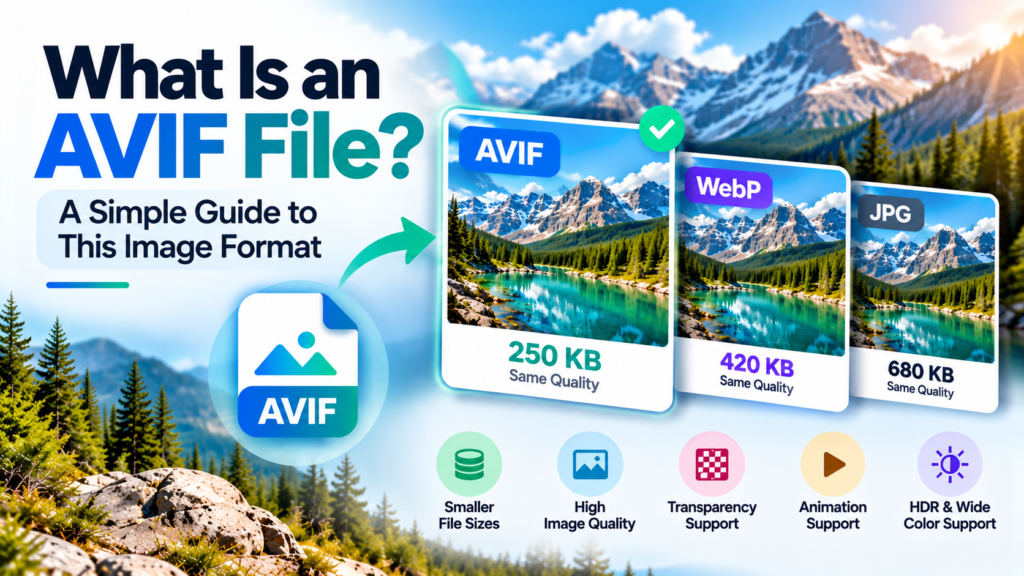
Images are an important part of the internet. We use them on websites, blogs, online stores, social media platforms, and digital applications. However, images can sometimes have large file sizes, which may increase website loading times and use more internet data.
To solve this problem, modern image formats are designed to store images more efficiently. One example is AVIF, a relatively modern image format that can maintain good visual quality while reducing file size.
You may have already seen files ending in .avif while browsing websites or downloading pictures. But what does this extension mean? Why are website owners using AVIF? Is it better than JPG, PNG, or WebP? And how can you open an AVIF file if your computer does not recognise it?
In this guide, you will learn everything you need to know about the AVIF image format, including how it works, its features, advantages, disadvantages, practical uses, and conversion methods.
What Is an AVIF File?
An AVIF file is an image file that uses the AV1 Image File Format. It is designed to store visual content efficiently, often providing a smaller file size than traditional image formats while maintaining good image quality.
AVIF uses the AV1 image-coding technology to compress image data. This technology helps represent images using less data, making AVIF particularly useful for websites and applications that display many images.
An AVIF image usually has the .avif file extension.
For example, consider these three file names:
beautiful-garden.jpgbeautiful-garden.pngbeautiful-garden.avif
All three files could contain a photograph of the same garden, but each uses a different image format. Depending on the image and compression settings, the AVIF version may be considerably smaller than the JPG or PNG version.
The main purpose of AVIF is to provide an efficient way to store and display images without unnecessarily increasing file size.
What Does AVIF Stand For?
AVIF stands for AV1 Image File Format.
The name describes the technology used to store image data.
- AV1: A modern coding technology used to compress visual information.
- Image: The format is designed to store still images and can also support animated image sequences.
- File Format: It defines how image information and related data are organised inside a file.
AVIF uses AV1 compression within a file structure based on the High Efficiency Image File Format (HEIF) family.
Although AV1 is also associated with video, its compression technology can be used for individual images. This makes it possible to use the same general coding approach for both still pictures and certain types of animated content.
What Is the File Extension of AVIF?
The standard file extension for AVIF images is .avif.
Here are some examples of how AVIF files might be named:
| File name | Possible use |
|---|---|
mountain-view.avif | Landscape photography |
product-photo.avif | Online shopping images |
blog-featured-image.avif | Blog featured images |
transparent-logo.avif | Graphics with transparency |
animated-banner.avif | Animated visual content |
The file extension helps your operating system and applications identify the file format.
However, simply changing the extension of a JPG image from .jpg to .avif does not convert it into an AVIF file. A genuine conversion requires an image converter or compatible image-editing software.
How Does the AVIF Image Format Work?
To understand AVIF, it helps to understand image compression.
A digital photograph contains a large amount of information. It records colours, brightness, edges, textures, and many other visual details. Storing all this information can require a significant amount of data.
Image compression reduces the amount of data needed to store or transmit an image.
AVIF uses modern coding techniques to represent image information efficiently. Instead of storing every part of an image in the same straightforward way, its compression process uses patterns and relationships within the visual data to reduce the amount of information required.
The result can be an image that looks very similar to the original but occupies less storage space.
Understanding Lossy Compression
Lossy compression reduces file size by removing some image information.
The removed information is selected in a way that aims to minimise visiƒble differences. However, the result depends on the compression settings and the content of the image.
For example, imagine a photograph of a green forest. It contains thousands of leaves, different shades of green, and many small details.
Using lossy compression, an encoder may represent some of these details more efficiently. The final image can look very similar to the original while requiring less data.
If the compression is too strong, however, the image may become blurry or show visible artefacts.
Lossy AVIF is useful when smaller file sizes are important, such as for website photographs and online product images.
Understanding Lossless Compression
Lossless compression reduces file size without losing the image information represented by the encoding process.
When the image is decoded, the original encoded image data can be reconstructed exactly.
This is useful when preserving precise image details is important. However, lossless compression does not guarantee the smallest possible file size.
For example, a photograph saved using lossless compression may remain larger than a version saved with carefully selected lossy settings.
AVIF supports both lossy and lossless encoding, giving users flexibility depending on their requirements.
Why Can AVIF Produce Smaller Files?
AVIF uses modern compression methods that can represent many types of visual information efficiently.
Its results can be particularly useful when compressing photographs and complex images containing many colours and gradual changes in brightness.
Consider a website containing 100 photographs. If the original images are unnecessarily large, visitors may need to download a considerable amount of data to view the page.
Converting suitable images to AVIF may reduce the total download size.
However, there is no fixed percentage by which AVIF always reduces image size. Results depend on the original format, dimensions, image content, quality settings, and encoding software.
The best approach is to compare actual files rather than assume that AVIF will always be smaller.
Main Features of the AVIF Image Format
AVIF offers several features that make it useful for modern websites, photography, digital graphics, and other image-related applications.
1. Efficient Image Compression
One of the main features of AVIF is its ability to compress images efficiently.
It can often produce smaller files than JPG or WebP at a similar perceived image quality. This can help website owners reduce the amount of data required to display photographs.
For example, an online store may display hundreds of product photographs. Smaller image files can reduce the total amount of data transferred when customers browse those products.
The exact benefit depends on the images and compression settings used.
2. Good Visual Quality
AVIF can preserve many visual details even when the image is compressed to a relatively small file size.
This is useful for photographs containing complex textures, such as clothing, food, landscapes, buildings, and natural objects.
However, compression quality still matters. If the settings are too aggressive, the image may show unwanted changes in texture, colour, or fine detail.
Always compare the compressed image with the original before publishing it.
3. Transparency Support
AVIF supports transparency, allowing an image to contain transparent areas.
Transparency is useful when you want an image to appear without a solid rectangular background.
For example, imagine a photograph of a chair with the background removed. The chair can be placed over a white, grey, or coloured website background without showing an unwanted white rectangle.
This feature can be useful for product cut-outs, overlays, decorative graphics, and certain logos.
The application displaying the image must support its transparency correctly.
4. Animation Support
AVIF can store animated image sequences as well as still images.
An animated image contains multiple frames that are displayed in sequence to create movement.
For example, a short animation demonstrating how a product works could be stored in an animated image format.
AVIF animation may provide advantages over GIF in some situations, particularly when compression efficiency and visual quality matter.
However, the results depend on the animation content, encoding settings, and software support.
5. High Dynamic Range Support
AVIF supports high dynamic range, commonly called HDR.
HDR allows compatible image workflows to represent a wider range of brightness levels than standard dynamic range images.
This can help preserve information in very bright and very dark parts of a photograph.
For example, a photograph of a sunset might contain a bright sky, illuminated clouds, and a dark landscape. HDR-capable workflows can represent a wider range of brightness information.
The final appearance depends on the original image, encoding settings, colour information, display capabilities, and viewing software.
6. Wide Colour Gamut Support
AVIF can support wide colour gamuts, allowing compatible images to represent a broader range of colours.
This can be useful for photography, digital artwork, and images intended for modern displays.
However, the image must contain the appropriate colour information, and the viewing environment must handle it correctly. Otherwise, the full benefit may not be visible.
7. Different Bit Depths
AVIF supports multiple bit depths, including 8-bit, 10-bit, and 12-bit image data in supported profiles.
Bit depth affects how many different tonal values can be represented.
Higher bit depths can be useful when preserving smooth colour transitions and working with advanced imaging content.
For ordinary website photographs, the practical difference depends on the source image and how the image will be displayed.
8. Support for Modern Web Browsers
AVIF is supported by current versions of major web browsers, making it a practical option for modern websites.
Website owners can use AVIF to deliver images more efficiently when their content-management systems, hosting environments, and image-delivery tools support the format.
However, compatibility should still be checked for older applications and specialised software.
What Are the Advantages of AVIF?
AVIF offers several benefits, particularly when image file size and website performance are important.
Smaller Image Files
AVIF can often reduce image file sizes while maintaining good visual quality.
This is useful when working with large photographs, website banners, product images, and image galleries.
Smaller files can also make it easier to store and transfer large collections of images.
Potentially Faster Website Loading
Images can account for a large part of the data downloaded when someone visits a website.
If AVIF reduces the size of those images, the browser may need less time to download them.
This can improve the experience for visitors using slower internet connections or mobile networks.
However, image compression is only one factor affecting website performance. Hosting quality, caching, page design, image dimensions, and network speed also matter.
Reduced Bandwidth Usage
Bandwidth refers to the amount of data transferred between a website and its visitors.
When image files are smaller, the website may transfer less data each time those images are requested.
For websites with substantial traffic, this can help reduce image-delivery costs and bandwidth usage.
The actual savings depend on the number of image requests, caching, traffic levels, and the difference between the original and compressed files.
Support for Transparent Images
AVIF supports transparent backgrounds, which makes it useful for graphics that need to blend into different backgrounds.
Unlike standard JPG, AVIF can preserve transparency when the image is encoded and displayed correctly.
Support for Advanced Image Features
AVIF supports more than ordinary compressed photographs. It can also handle transparency, animation, HDR, wide colour gamuts, and lossless encoding.
These capabilities make it suitable for a range of modern digital-image applications.
Useful for Image-Heavy Websites
Websites such as online stores, travel blogs, photography portfolios, and image galleries can benefit from efficient image delivery.
For example, a travel website may display large photographs of hotels, beaches, mountains, and tourist attractions. Reducing the file sizes of these images may lower the amount of data visitors need to download.
What Are the Disadvantages of AVIF?
Despite its advantages, AVIF also has limitations. Understanding these limitations can help you decide whether it is suitable for your needs.
1. Compatibility Is Not Universal
Modern web browsers generally support AVIF, but not every image viewer, editing application, or older device supports it.
You may encounter a situation where an AVIF file opens correctly in a browser but does not open in an older desktop application.
In such cases, updating the software or converting the image to JPG or PNG may solve the problem.
2. Encoding May Require More Processing Time
Creating an AVIF file can take longer than creating certain JPG or WebP files, depending on the encoder and compression settings.
This can matter when processing thousands of images or generating new images in real time.
For a small number of images, the difference may not be significant. For large-scale image-processing systems, encoding speed should be tested before selecting a format.
3. Strong Compression Can Reduce Quality
Although AVIF can maintain good image quality at small file sizes, it is not immune to compression artefacts.
Excessive compression may affect fine textures, edges, small text, or colour transitions.
This is particularly important for images where accuracy matters, such as product photographs or detailed graphics.
Always choose compression settings based on the intended use rather than selecting the smallest possible file.
4. Conversion Does Not Restore Lost Details
Suppose you convert a JPG image to AVIF using lossy compression. If the conversion removes some image information, converting the AVIF back to JPG will not restore that information.
The resulting JPG may look similar to the original, but it may contain additional quality loss.
Keep an original copy of important images before performing lossy conversions.
5. It May Not Be the Best Format for Every Graphic
AVIF can work well for photographs and many other images, but certain graphics need special attention.
For example, screenshots containing small text may look less sharp when compressed using lossy settings. Simple vector logos may also be better stored as SVG files.
For graphics requiring precise pixel preservation, PNG may be a more straightforward choice.
The best format depends on the type of image and the purpose it serves.
6. Traditional Progressive JPEG Behaviour Is Different
Progressive JPEG can display a rough version of an image while additional image data downloads. The image becomes clearer as more data arrives.
AVIF does not provide the same traditional progressive-JPEG rendering behaviour.
This difference may matter in certain loading scenarios, although smaller AVIF files can reduce download times.
For most website owners, the best decision is to test the actual page rather than choose a format based on one technical feature alone.
AVIF vs JPG vs PNG vs WebP
AVIF is not the only format available for digital images. JPG, PNG, and WebP remain widely used and have their own advantages.
The following comparison will help you understand their differences.
| Feature | AVIF | JPG/JPEG | PNG | WebP |
|---|---|---|---|---|
| Main purpose | Efficient modern image storage | Photographs and broad compatibility | Lossless graphics and transparency | Efficient web images |
| Lossy compression | Yes | Yes | Not part of standard PNG encoding | Yes |
| Lossless compression | Yes | No standard lossless mode | Yes | Yes |
| Transparency | Yes | No | Yes | Yes |
| Animation | Yes | No | APNG is a separate animation format | Yes |
| File size | Often small | Often small for photographs | Often larger for photographs | Often small |
| HDR support | Yes | Not in the traditional JPG format | Limited in typical PNG workflows | Depends on the format and workflow |
| Common use | Modern web images | Everyday photographs | Screenshots and transparent graphics | Website images and animation |
These are general comparisons. The actual file size and image quality depend on the image content, encoder, and settings.
AVIF vs JPG: Which Is Better?
JPG is a familiar image format supported by almost every device and image application.
It is commonly used for photographs, scanned images, and pictures shared online.
AVIF can often achieve smaller file sizes at a similar perceived quality. It also supports transparency and other features that standard JPG does not.
Choose AVIF when efficient compression and modern image features are important.
Choose JPG when you need broad compatibility with older software, devices, and workflows.
AVIF vs PNG: Which Is Better?
PNG is a lossless image format that supports transparency. It is widely used for screenshots, diagrams, interface graphics, and images containing sharp edges.
AVIF can provide smaller files for many types of images and also supports transparency.
However, the result depends on whether AVIF uses lossy or lossless compression. Lossy compression can introduce artefacts around text and sharp edges, while PNG preserves the encoded pixel information.
Choose AVIF when smaller file sizes are important and the output passes your quality checks.
Choose PNG when predictable lossless storage, editing compatibility, or exact pixel preservation is a priority.
AVIF vs WebP: Which Is Better?
WebP was developed to provide efficient image compression for the web. It supports lossy and lossless compression, transparency, and animation.
AVIF may produce smaller files than WebP for certain images, but it is not always the winner.
You should also consider encoding time, decoding performance, image quality, and compatibility with your software.
Choose the format that produces the best overall result for your website rather than assuming that one format is always superior.
When Should You Use AVIF?
AVIF is useful when you want to reduce image file sizes while maintaining acceptable visual quality.
Here are some common situations where the format may be a good choice.
1. Website Photographs
Photographs are often among the largest files on a webpage.
AVIF can help reduce the download size of landscape photographs, portraits, travel pictures, and other photographic content.
This is particularly useful for websites that display many high-resolution images.
2. E-commerce Product Images
Online stores often display product images from several angles.
Smaller images may help customers browse product listings more efficiently, especially on mobile devices.
AVIF can be a useful option for product photographs, provided that the images display correctly and retain important details.
For example, check that the colour of a shirt, texture of a bag, or shape of an electronic product remains accurate after conversion.
3. Blog Featured Images
Bloggers can use AVIF for featured images, article illustrations, and photographs.
A technology blog may use it for editorial images, while a travel blog may use it for destination photographs.
Before switching formats, check whether your website platform and image-optimisation plugins support AVIF throughout the publishing process.
4. Transparent Product Images
Some product images need transparent backgrounds so that the products can appear over different colours or layouts.
AVIF supports transparency, making it a possible alternative to PNG for these images.
Compare the output carefully, particularly around fine edges such as hair, transparent glass, and reflective objects.
5. Image Galleries
Image galleries may contain dozens or hundreds of photographs on a single page.
Using smaller image files can reduce the total amount of data visitors need to download.
However, you should also consider thumbnail sizes, responsive image delivery, and lazy loading. Changing the image format alone will not solve every gallery-performance issue.
6. Digital Graphics and Illustrations
AVIF can store many types of digital graphics, including illustrations and selected interface images.
For sharp diagrams, logos, and graphics containing small text, compare the result with SVG or PNG before choosing AVIF.
SVG is especially useful for vector graphics because it can scale to different sizes without the pixelation associated with raster images.
7. Animated Visual Content
AVIF can store animated sequences and may be suitable for selected animated website graphics.
Before using animated AVIF, confirm that the target browser or application supports the animation correctly. Also compare the file size and playback behaviour with alternative formats.
When Should You Avoid AVIF?
Although AVIF is useful in many situations, there are cases where another format may be more practical.
Avoid using AVIF as your only option when:
- You need to support older applications that cannot open AVIF.
- Your workflow requires a file format that a particular editing tool does not support.
- You need a vector graphic that must scale cleanly to different sizes; SVG may be more appropriate.
- You need predictable compatibility with older systems; JPG or PNG may be safer.
- Your converted image has visible compression artefacts that affect its purpose.
- Your website platform cannot correctly upload, resize, optimise, or serve AVIF files.
There is no need to convert every image simply because AVIF is a modern format. Select it when it provides a measurable benefit for your particular use case.
How to Open an AVIF File on Your Computer
If you download an AVIF image and cannot open it, there are several ways to view it.
Method 1: Open the Image in a Web Browser
Current versions of major browsers, including Chrome, Edge, Firefox, and Safari, support AVIF.
Follow these steps:
- Find the AVIF file on your computer.
- Open a supported web browser.
- Drag the image file into the browser window.
- Wait for the image to display.
- If it does not open, try another updated browser.
This is often the simplest method because you may not need to install any additional software.
Method 2: Use an Image Viewer
Some image-viewing applications support AVIF directly.
To try this method:
- Locate the AVIF image.
- Right-click the file.
- Select Open with.
- Choose an image viewer that supports AVIF.
- If the image does not display, check whether the application needs an update or additional format support.
Compatibility depends on the operating system version and the software installed on your device.
Method 3: Use an Image Editor
Some modern image editors can open and export AVIF images.
Open the file in a compatible editor and check whether it displays correctly. If the application supports exporting to another format, you may also be able to save the image as JPG or PNG.
Before converting important images, retain an original copy in case the conversion changes image quality or transparency.
Method 4: Convert AVIF to Another Format
If you cannot open an AVIF file using your available software, converting it to JPG or PNG may be the easiest solution.
Choose a trustworthy converter and verify the resulting file before deleting the original.
If the image is private or confidential, prefer an offline application instead of uploading it to an unknown online service.
How to Convert an AVIF File to JPG
JPG is a practical choice when you need a photograph that works with a wide range of applications.
Follow these general steps:
- Open an image converter that supports AVIF.
- Select the AVIF image from your device.
- Choose JPG or JPEG as the output format.
- Select a suitable quality setting if one is available.
- Start the conversion.
- Save the converted image.
- Open the JPG and check its appearance.
The converted file may have a different size from the original AVIF. It may also lose additional information because JPG uses lossy compression.
What Happens to Transparency When Converting AVIF to JPG?
Standard JPG does not support transparent backgrounds.
If the AVIF image contains transparency, the converter must replace transparent areas with a background colour or otherwise handle them according to its settings.
For example, a transparent product image may appear with a white background after conversion.
If preserving transparency is important, PNG or another transparency-capable format may be a better choice.
How to Convert an AVIF File to PNG
PNG is useful when you need a widely supported image format that preserves transparency and uses lossless encoding.
Follow these steps:
- Open a converter that supports AVIF files.
- Select the image you want to convert.
- Choose PNG as the output format.
- Start the conversion.
- Save the new file.
- Check the image quality and transparency.
PNG files can be larger than AVIF files, especially when they contain photographs.
Also, converting a lossy AVIF to PNG does not restore details that were removed during the original compression. PNG will preserve the image data it receives during conversion, not information that is already missing.
Can You Convert JPG to AVIF?
Yes. You can convert JPG images to AVIF using a compatible image converter or image-editing application.
This can be useful when you want to reduce the file sizes of photographs used on a website.
Follow these steps:
- Select the JPG image.
- Open it in an AVIF-compatible converter.
- Choose AVIF as the output format.
- Select a suitable quality setting.
- Convert and save the image.
- Compare the new AVIF file with the original JPG.
Compare both images at the same dimensions and inspect the areas where detail matters most.
For example, if the image contains a product label, fine texture, or small text, make sure those details remain clear.
Do not delete the original JPG until you are satisfied with the converted result.
How to Use AVIF Images on a Website
Website owners can use AVIF to reduce image download sizes, but proper implementation is important.
The right approach depends on your website platform, visitors, image delivery system, and compatibility requirements.
1. Provide a Fallback Image
One way to serve AVIF is to use the HTML <picture> element. It allows a browser to select an image format it supports.
For example:
<picture>
  <source srcset="landscape.avif" type="image/avif">
  <source srcset="landscape.webp" type="image/webp">
  <img
    src="landscape.jpg"
    alt="Green hills beneath a cloudy sky"
    width="1200"
    height="800"
  >
</picture>
In this example, the browser can use the AVIF source when supported. If it cannot use that source, it can try WebP and then use JPG as the fallback.
The files must exist at the specified paths and contain the intended image. The server should also deliver them with the correct content types.
2. Resize Images Before Uploading
Image dimensions affect file size.
For example, if a website displays an image at 800 pixels wide, uploading an unnecessarily large image may require more data than needed.
Resize images according to their intended use, while accounting for responsive layouts and high-resolution displays.
3. Use Responsive Images
A responsive website may need different image sizes for different screens.
A small mobile screen does not always need the same image dimensions as a large desktop monitor.
Responsive image techniques allow the browser to choose an appropriate image resource based on the available options and viewing conditions.
This can reduce unnecessary downloads and improve the experience for visitors.
4. Choose Suitable Compression Settings
Do not automatically select the highest compression level.
A smaller file is useful only if the image still meets your quality requirements.
For photographs, inspect textures and colour transitions. For graphics, check sharp edges and text. For transparent images, inspect the boundaries between the subject and the background.
5. Check Your Website Platform
Before using AVIF across an entire website, verify that your content-management system, image optimisation plugin, hosting environment, and content-delivery system handle it correctly.
Some platforms may support AVIF uploads but not every related operation, such as thumbnail generation or automatic conversion.
Test your workflow from image upload to final display before changing a large media library.
Does AVIF Improve Website SEO?
AVIF can help support website performance, but using it does not automatically improve search rankings.
The main potential benefit comes from reducing the amount of data needed to display images. If images are a major part of a page’s loading weight, smaller files may help the page load more efficiently.
However, search visibility depends on many factors, including content quality, relevance, accessibility, page experience, and how search engines can discover and understand your pages.
Image SEO Best Practices
Use descriptive file names. Choose names that explain the image content, such as blue-running-shoes.avif, instead of generic names like image001.avif.
Write meaningful alt text. Describe the image accurately when it communicates useful information. Do not fill alt text with unrelated keywords.
Optimise image dimensions. Avoid sending oversized images when smaller versions can serve the same purpose.
Use suitable compression. Reduce file sizes while maintaining the level of visual quality your content needs.
Make important images discoverable. Ensure that relevant images can be accessed by search engines and are not unintentionally blocked.
Monitor page performance. Check whether image sizes are affecting loading times and address other performance issues where necessary.
Avoid unnecessary image changes. If you replace existing image URLs, update references and redirects where appropriate to prevent broken images.
AVIF is a useful part of an image-optimisation strategy, but it should be combined with good website structure and sensible image management.
Frequently Asked Questions About AVIF
1. Is AVIF better than JPG?
AVIF can produce smaller files than JPG at a similar perceived image quality. It also supports transparency and other modern image features. However, JPG remains useful when compatibility with older applications and devices is important.
2. Is AVIF better than WebP?
AVIF may provide better compression for certain images, but the result depends on the image content and encoding settings. WebP may be a better choice when it offers a more suitable balance of file size, image quality, compatibility, and processing speed.
3. Can AVIF images have transparent backgrounds?
Yes. AVIF supports transparency. However, the image must be encoded with transparency information, and the software displaying the file must support it correctly.
4. Can AVIF contain animation?
Yes. AVIF supports animated image sequences. The target browser or application must support animated AVIF for the animation to play as intended.
5. Can I use AVIF on my website?
Yes. AVIF is supported by current major web browsers and can be used for many types of website images. Check your website platform and image-delivery workflow before using it throughout your site.
6. Does AVIF reduce image quality?
AVIF supports both lossy and lossless compression. Lossy settings can reduce image quality, while lossless encoding preserves the encoded image information. The outcome depends on the settings and the source image.
7. Why will my computer not open an AVIF file?
Your image viewer or operating system may not support AVIF, or it may need an update or additional codec. Try a modern browser or convert the file to JPG or PNG using a compatible tool.
8. Can I convert AVIF to JPG without losing quality?
A conversion to JPG may introduce additional quality loss because JPG uses lossy compression. The converted image may look very similar to the original, but exact preservation is not guaranteed.
9. Is AVIF suitable for logos?
AVIF can be suitable for raster logos that need transparency. However, SVG is often better for vector logos because it can scale to different sizes without losing sharpness. PNG is also a practical choice for many transparent graphics.
10. Is AVIF free to use?
AVIF is an open, royalty-free image format. You can use compatible tools to create and display AVIF images, subject to the terms of the specific software or service you choose.
11. What is the difference between AVIF and HEIC?
AVIF and HEIC are related to the broader HEIF container family, but they use different image-coding technologies. AVIF uses AV1, while HEIC commonly uses HEVC. They are different formats and should not be treated as interchangeable file extensions.
12. Should I convert every website image to AVIF?
No. Test representative images, compare file sizes and quality, and verify compatibility before making large-scale changes. Some images may benefit from AVIF, while others may be better kept as JPG, PNG, WebP, or SVG.
13. Is AVIF suitable for printing?
AVIF can store high-quality image data, but print workflows often depend on the software, colour management, and file formats supported by the printer or service provider. Confirm compatibility and output quality before using AVIF for important print projects.
14. Can I change the AVIF file extension to JPG?
No. Renaming photo.avif to photo.jpg does not change the underlying image format. Use a proper converter to create a valid JPG file.
15. Which is smaller: AVIF or PNG?
AVIF can be substantially smaller than PNG for many photographs, but the result depends on the image and compression settings. PNG may remain preferable for graphics that need lossless pixel preservation.
Conclusion
AVIF is a modern image format designed to store images efficiently while maintaining good visual quality. It supports lossy and lossless compression, transparency, animation, HDR, and wide colour gamuts.
It can be useful for website photographs, blog featured images, product pictures, digital graphics, and other visual content where reducing file size matters.
However, AVIF is not the ideal solution for every situation. Compatibility, processing speed, image quality, and the purpose of the image should all influence your decision.
If you manage a website, start by testing AVIF on a few representative images. Compare the resulting files with your existing JPG, PNG, or WebP images, and make sure your website displays them correctly.
The best image format is not necessarily the newest one. It is the format that provides the right balance of image quality, file size, compatibility, and performance for your needs.