
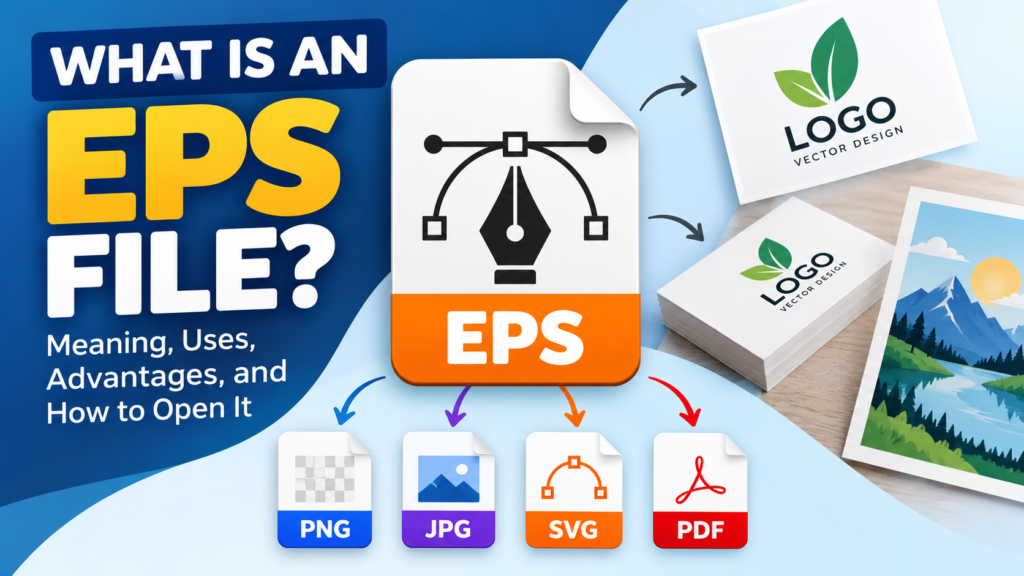
Images come in many formats, such as JPG, PNG, SVG, and WebP. Each format has its own features and uses. One format you may find while downloading logos, illustrations, or professional design files is EPS.
EPS files are commonly used in graphic design and printing. They can store vector graphics that remain sharp when resized, making them useful for logos, illustrations, and other designs that need to work at different sizes.
But what exactly is an EPS file? How does it work, and how can you open or convert it into another image format?
In this guide, you will learn everything you need to know about EPS files in simple English.
What Is an EPS File?
EPS stands for Encapsulated PostScript. It is a graphics file format used to store images, illustrations, and other design elements. EPS files can contain vector graphics, text, and raster images.
An EPS file uses PostScript instructions to describe how graphic elements should appear when displayed or printed. These instructions tell compatible software how to draw shapes, lines, curves, and other elements.
One important feature of EPS is its ability to store vector artwork. Vector graphics are created using mathematical paths and shapes rather than a fixed grid of pixels. This means vector artwork can be resized without losing its sharpness.
For example, imagine you have a company logo saved as an EPS file. You can use the same vector artwork on a business card, website banner, or large advertising poster without making the logo blurry, provided the artwork is vector-based.
EPS files can also contain raster images, which are made up of pixels. Therefore, not every EPS file is entirely vector-based.
The EPS format is especially useful in professional graphic design, publishing, and printing. However, it is less common for everyday website images because modern formats such as SVG, PNG, WebP, and AVIF are often more suitable for web use.
What Does EPS Stand For?
EPS stands for Encapsulated PostScript.
The name describes how the format works.
- Encapsulated: The graphic is packaged inside a file with information that helps compatible applications place and handle it within a larger document.
- PostScript: A page-description language that describes text, shapes, lines, and other elements for rendering or printing.
In simple terms, an EPS file packages graphic instructions so that supported design and publishing applications can reproduce the artwork.
The EPS format became popular in professional publishing because it made it easier to move graphics between compatible applications and include them in documents prepared for printing.
How Does an EPS File Work?
An EPS file contains instructions that describe how the graphic should be drawn. Compatible software reads these instructions and renders the artwork on the screen or for printing.
For example, consider a simple company logo containing a circle, a line, and some text.
In a raster image, the logo is represented by pixels. In vector artwork, the circle and line can be described using paths, curves, and other mathematical information.
When you enlarge the vector logo, the software calculates how to draw the shapes at the new size. The edges can remain sharp because the shapes are not limited to the original pixel dimensions.
EPS files may also include a preview image. This preview allows some applications to display a quick representation of the artwork without fully interpreting the PostScript instructions.
However, the preview may not always represent the full quality or appearance of the original artwork.
It is also important to understand that EPS is not simply a file containing an ordinary picture. It can contain instructions for creating the graphic, which is why compatible software is often needed to edit or convert it correctly.
Is EPS a Vector or Raster Format?
EPS is primarily associated with vector graphics, but it can contain both vector and raster content.
The type of artwork inside the file determines whether it can be resized without losing image quality.
Vector-based EPS files
Vector-based EPS files use paths, curves, lines, and shapes to create artwork.
They are suitable for designs that need to be resized frequently.
Examples include:
- Company logos
- Brand symbols
- Icons and illustrations
- Line drawings
- Typography-based artwork
- Technical diagrams
A vector logo can usually be enlarged significantly without becoming pixelated.
Raster-based EPS files
Raster graphics are made from individual pixels. Photographs and many digital images use this type of image data.
An EPS file can contain an embedded raster image or combine raster content with vector elements.
If an EPS file contains a low-resolution photograph, converting or enlarging it will not automatically make the photograph sharper.
Remember: EPS is a file format that can hold different types of graphic content. The EPS extension alone does not guarantee that an image is fully vector-based.
What Is an EPS File Used For?
EPS files are mainly used in professional design, illustration, and printing workflows.
Here are some common uses.
1. Company Logos
Logos often need to appear in different sizes and on different materials. A vector-based EPS file can help designers maintain consistent logo quality across these uses.
For example, a business may use its logo on visiting cards, brochures, office signs, packaging, and banners.
An EPS logo can be useful when a printer or designer requests vector artwork.
2. Professional Printing
EPS has traditionally been used in print production because it can preserve scalable artwork and printing-related information in compatible workflows.
Designers may use EPS artwork in posters, brochures, flyers, advertisements, and other printed materials.
However, EPS is not required for every professional printing job. Many modern print workflows prefer PDF files, depending on the printer’s requirements.
3. Illustrations and Graphic Design
Illustrators can use EPS to exchange artwork between supported applications.
It can be useful for illustrations, decorative graphics, symbols, and other designs that contain vector shapes.
For example, a designer might create an illustration in a vector graphics application and provide an EPS file to a client who needs to use the artwork in a publishing workflow.
4. Packaging and Product Labels
Product packaging often requires logos, symbols, text, and illustrations to appear at different sizes.
Vector-based EPS artwork can be useful when preparing these elements for compatible packaging and printing systems.
The final file format should still follow the printer’s specifications.
5. Publishing and Advertising
EPS has been used to place graphics into page-layout documents and advertising designs.
For example, a designer preparing a magazine advertisement may receive an EPS logo from a company and place it within the final page layout.
Today, PDF and other formats are also widely used for these purposes.
6. Stock Graphics and Downloadable Artwork
Some graphic marketplaces and design resources offer EPS files for download.
These files may include editable illustrations, icons, logos, decorative patterns, and other vector artwork.
Before downloading or using any graphic, check its licence. A file being available for download does not automatically mean that you can use it commercially.
Advantages of EPS Files
EPS has several advantages, especially when used for compatible vector and print workflows.
1. Supports Scalable Vector Artwork
A vector-based EPS graphic can be resized without the pixelation associated with enlarging a raster image.
This is useful for logos, illustrations, and other artwork used at different sizes.
2. Useful for Professional Design
EPS can be used in compatible graphic design, illustration, and publishing applications.
It is particularly useful when exchanging artwork with a printer or designer whose workflow supports EPS.
3. Can Contain Different Graphic Elements
An EPS file can contain vector shapes, text, raster images, and other PostScript-based graphic instructions.
This allows it to represent different types of artwork within a single file.
4. Supports Detailed Artwork
EPS can represent complex paths, curves, and illustrations. It is therefore useful for designs containing detailed vector elements.
5. Can Be Converted to Other Formats
You can convert EPS artwork into formats such as PNG, JPG, SVG, or PDF using compatible software.
The best output format depends on how you intend to use the image.
For example, PNG may be suitable for a transparent logo, while PDF may be more appropriate for a document or print workflow.
Disadvantages of EPS Files
Despite its advantages, EPS has some limitations.
1. Not Supported Everywhere
EPS is not as convenient as JPG or PNG for everyday viewing.
Some applications cannot open EPS files directly, so you may need dedicated design software or a compatible conversion tool.
2. Not Ideal for Websites
EPS is generally not a suitable format for displaying images directly on modern websites.
Websites commonly use formats such as SVG for vector graphics and WebP, AVIF, PNG, or JPG for raster images.
If you want to use an EPS logo on a website, you will usually need to export or convert it to a suitable web format.
3. Editing Requires Compatible Software
You may need an application such as Adobe Illustrator, CorelDRAW, or Inkscape to edit an EPS file.
The available editing features can differ between applications, and some files may not open exactly as expected.
4. File Sizes Can Be Large
The file size depends on the artwork, embedded images, complexity, and other content.
An EPS file containing complex vector artwork or large embedded raster images may be bigger than expected.
5. Transparency and Effects Can Be Complicated
EPS does not handle modern transparency and effects in the same way as some newer graphics formats.
When exporting artwork from modern design software, certain effects may be changed, flattened, or handled differently.
You should check the final output before sending it for printing or using it in another application.
How to Open an EPS File on Windows
Windows does not provide universal built-in support for opening EPS files in the same way it does for common formats such as JPG and PNG.
You can use a compatible graphics application instead.
Method 1: Use Adobe Illustrator
Adobe Illustrator is a vector graphics editor that supports EPS workflows.
Follow these steps:
- Install and open Adobe Illustrator.
- Select File from the menu.
- Choose Open.
- Find the EPS file on your computer.
- Select the file and open it.
- Review the artwork and make any necessary changes.
If you need to edit individual vector elements, Illustrator may provide more control than a simple image viewer.
Method 2: Use Inkscape
Inkscape is a vector graphics editor that can be used for many vector artwork tasks. It is available for Windows, macOS, and Linux.
To try opening an EPS file:
- Install Inkscape from its official website.
- Launch the application.
- Select the option to open a file.
- Choose your EPS file.
- Follow any import or rendering prompts.
EPS support can depend on the software version and available components, so some files may require additional configuration or conversion.
Method 3: Use an Online EPS Viewer or Converter
An online tool may allow you to upload an EPS file and preview or convert it in your browser.
This can be convenient if you only need to view the image once.
However, avoid uploading confidential company logos, unpublished designs, or other sensitive artwork to an online service unless you trust its privacy and security practices.
How to Open an EPS File on Mac
Mac users can also open EPS files with compatible graphics applications.
Using Adobe Illustrator
- Open Adobe Illustrator.
- Select File and then Open.
- Locate the EPS file.
- Open the file and review the artwork.
Using Inkscape
- Install Inkscape for macOS.
- Open the application.
- Select the EPS file.
- Follow any import instructions that appear.
Depending on the file and software setup, additional components may be needed to render the artwork.
Can You Open EPS Files Using Apple Preview?
EPS compatibility in Apple Preview depends on the macOS version and available system support. You should not assume that every EPS file will open directly in Preview.
If Preview cannot open the file, use compatible graphics software or convert the file to PDF or PNG.
How to Convert an EPS File to PNG
PNG is useful when you need a raster image for a website, presentation, document, or graphic with a transparent background.
You can convert EPS to PNG using a graphics editor or a compatible conversion tool.
Using a graphics editor
- Open the EPS file in compatible software.
- Check that the artwork looks correct.
- Choose the export option.
- Select PNG as the output format.
- Choose the desired image dimensions and resolution.
- Enable transparency if needed and supported by the export settings.
- Export the image.
When converting a vector graphic to PNG, the software creates a raster image. The output has fixed pixel dimensions, so choose a sufficiently large size for your intended use.
For a website logo, you may want a transparent background. For a blog featured image, a solid background may be more suitable.
How to Convert an EPS File to JPG
JPG is useful when you need a photograph-style image or a smaller raster file without transparency.
Follow these general steps:
- Open the EPS file in a compatible graphics application.
- Check the artwork and its colours.
- Choose the export or save-a-copy option.
- Select JPG or JPEG.
- Choose the image dimensions and quality settings.
- Export the file.
JPG does not support transparent backgrounds. If the original artwork has transparency, the exported image will generally need a solid background.
Also remember that JPG uses lossy compression. Repeatedly saving an image as JPG can reduce its quality.
How to Convert an EPS File to SVG
SVG is a vector graphics format designed for scalable graphics and widely used on websites.
Converting EPS to SVG can be useful when you want to use a logo or illustration in a web project.
Here is the general process:
- Open the EPS file in compatible vector graphics software.
- Check that the shapes, text, and colours appear correctly.
- Choose the save-as or export option.
- Select SVG as the output format.
- Review any options related to text, paths, and document settings.
- Save the file and test it in a compatible browser or graphics editor.
The conversion may not preserve every feature perfectly. Fonts, clipping paths, gradients, and other effects may need adjustment.
If the EPS contains raster images, those images may remain embedded or be handled differently during conversion. Converting an EPS file to SVG does not automatically turn a photograph into vector artwork.
EPS vs. SVG: What Is the Difference?
EPS and SVG can both be used to store vector artwork, but they work differently and serve different purposes.
| Feature | EPS | SVG |
|---|---|---|
| Full form | Encapsulated PostScript | Scalable Vector Graphics |
| Main purpose | Design and print workflows | Web and scalable graphics |
| Graphic content | Vector and raster content | Vector elements and embedded raster content |
| Scalability | Vector artwork scales well | Vector artwork scales well |
| Browser support | Not generally supported directly | Supported by modern browsers |
| Animation | Not designed for modern web animation | Supports animation techniques |
| Editing | Compatible design software | Vector editors and text-based tools |
| Website use | Usually requires conversion | Commonly used directly |
Which is better?
Choose EPS when you need to exchange artwork with a designer or printer whose workflow requires it. Choose SVG when you need scalable graphics for a website or a project that benefits from editable vector elements.
Neither format is automatically better for every situation. The right choice depends on your intended use and the software involved.
EPS vs. PDF: What Is the Difference?
EPS and PDF are both associated with PostScript-related technologies and professional publishing, but they are not the same format.
EPS is primarily used to package graphic artwork for placement in other documents or design workflows.
PDF is a document format that can contain text, images, vector graphics, fonts, and multiple pages.
Here is a simple comparison:
| Feature | EPS | |
|---|---|---|
| Main use | Graphic artwork | Documents and print-ready files |
| Multiple pages | Not designed for multi-page documents | Supported |
| Vector graphics | Supported | Supported |
| Text and images | Supported | Supported |
| General document sharing | Less convenient | Very common |
| Printing | Used in compatible workflows | Widely used in modern printing |
If you need to send a multi-page document or a finished design for review, PDF is usually more convenient. If a design application or printer specifically requests EPS artwork, EPS may be the appropriate choice.
What Is the Difference Between EPS and AI?
AI is Adobe Illustrator’s native document format, while EPS is a more general graphics interchange format based on PostScript.
An AI file is often preferable when continuing to edit a design in Illustrator because it can preserve Illustrator-specific document features.
EPS is useful when exchanging artwork with applications and workflows that support the format.
The main differences are:
- AI: Suitable for editing and maintaining Illustrator projects.
- EPS: Useful for exchanging artwork in compatible graphics and printing workflows.
- AI compatibility: Best within Illustrator and compatible applications.
- EPS compatibility: Depends on the application’s EPS support and the features used in the file.
Converting between the formats may not preserve every editing feature, so keep the original editable file when possible.
Can You Use EPS Files on a Website?
EPS is generally not used directly as a website image format.
Web browsers commonly support formats such as JPEG, PNG, GIF, WebP, AVIF, and SVG. EPS is not a standard image format for direct browser display.
If you download an EPS logo or illustration for your website, convert it to a suitable format first.
Here are some practical choices:
- SVG: Best for suitable vector logos, icons, and illustrations.
- PNG: Useful for transparent raster graphics.
- WebP: Useful for efficient website images.
- AVIF: Useful when supported by your target browsers and workflow.
- JPG: Suitable for photographs and images that do not need transparency.
For WordPress websites, SVG may require additional configuration or a trusted sanitization solution before uploads are allowed. PNG and WebP are often easier choices for ordinary image uploads.
Is EPS Still Used Today?
Yes, EPS is still encountered in graphic design, publishing, stock artwork, and printing workflows.
However, it is not the preferred format for every modern design task.
SVG is commonly used for website graphics, while PDF is widely used for document sharing and print production. PNG, WebP, and AVIF are popular choices for raster images on websites.
EPS remains useful when working with older artwork, existing design files, or a printer that specifically requests EPS.
The best approach is to choose the format that matches your software, editing requirements, and final destination.
Frequently Asked Questions About EPS Files
1. What is an EPS file in simple words?
An EPS file is a graphics file that can store vector artwork, text, raster images, and instructions for drawing graphics. It is commonly used in professional design and printing.
2. Is EPS the same as SVG?
No. Both formats can store vector graphics, but EPS is based on PostScript and is associated with design and print workflows. SVG is an XML-based vector format widely used on websites.
3. Is EPS better than PNG?
Neither is always better. EPS is useful for compatible design workflows and scalable vector artwork. PNG is a raster image format that supports transparency and is convenient for websites, screenshots, and digital graphics.
4. Can I convert an EPS file to JPG?
Yes. Compatible graphics software and conversion tools can export EPS artwork to JPG. The result is a raster image with fixed pixel dimensions, and JPG does not support transparency.
5. Can I convert EPS to PNG without losing quality?
You can preserve the appearance of vector artwork by exporting it at an appropriate resolution. However, PNG is a raster format, so the exported image has fixed dimensions. If the EPS contains a low-resolution raster image, conversion will not restore missing detail.
6. Does EPS support transparency?
EPS has limitations compared with modern graphics formats when handling transparency and advanced effects. The exact result depends on the artwork and the application used to create or export the file.
7. Can I edit an EPS file?
Yes, if you use compatible software. Applications such as Adobe Illustrator and CorelDRAW can edit many EPS files. Inkscape may also handle many EPS files, depending on the file and software configuration.
8. Are EPS files safe?
EPS files can contain PostScript instructions, so you should treat files from unknown sources with care. Use trusted software, keep it updated, and avoid opening suspicious files. If you only need the picture, consider using a trusted conversion process.
9. Is EPS a compressed image format?
EPS is not defined primarily as an image compression format. File size depends on the artwork, embedded content, and how the file is created.
10. What is the file extension for EPS?
The standard file extension is .eps. Some related PostScript files use other extensions, such as .ps, but these are not interchangeable in every workflow.
Conclusion
EPS stands for Encapsulated PostScript. It is a graphics format that can store vector artwork, raster images, text, and drawing instructions. It has traditionally been used for logos, illustrations, publishing, and professional printing.
Its main advantage is its ability to represent scalable vector artwork in compatible workflows. However, EPS files are not universally supported by everyday image viewers or web browsers.
If you need to use an EPS image on a website, consider converting it to SVG, PNG, WebP, or another suitable format. If you are working with a printer or designer, check which file formats they accept before converting the original artwork.
Understanding EPS alongside formats such as JPG, PNG, SVG, and PDF will help you choose the right image format for your project.