
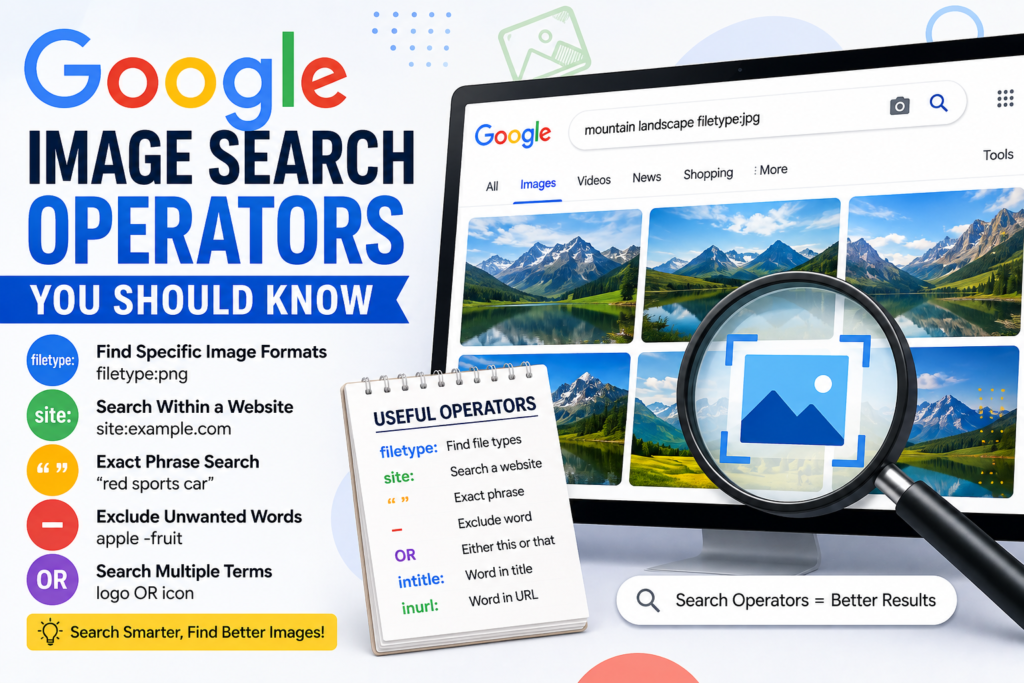
Google Images is great when you need to find a picture quickly. But if you search only with normal words, you may have to scroll through hundreds of unrelated images before finding what you need.
That is where Google Image Search Operators can help.
Search operators are special words and symbols that make Google search more specific. You can use them to find images from a particular website, look for a specific file format, search for an exact phrase, or remove unwanted results.
In this guide, we will look at the most useful Google Image Search operators you should know.
What Are Google Image Search Operators?
Google search operators are special commands that help you control your search.
Instead of searching:
laptop images
you can make the search more specific:
laptop filetype:png
Now Google will focus on PNG files related to laptops.
These operators can save you a lot of time when searching for images.
1. filetype: — Find a Specific Image Format
The filetype: operator is one of the most useful operators for image searches.
For example:
car filetype:png
This tells Google that you are looking for PNG files related to cars.
You can also search for other formats:
camera filetype:jpg
wallpaper filetype:webp
logo filetype:svg
photo filetype:jpeg
This is particularly useful when you already know which image format you need.
Example
Instead of searching:
transparent logo
try:
transparent logo filetype:png
This can make your results much more relevant.
2. site: — Search Images From a Specific Website
Do you want to find images from a particular website?
Use the site: operator.
For example:
site:wikimedia.org elephant
Or:
site:example.com logo
Google will focus the search on the website you specify.
You can also combine it with another operator:
site:example.com logo filetype:png
This is useful when you know the website where the image might be located.
3. Quotation Marks — Search for an Exact Phrase
Quotation marks tell Google to search for an exact phrase.
For example:
"red sports car"
This is different from searching:
red sports car
Without quotation marks, Google has more freedom to match the individual words.
With quotation marks, you are telling Google that the words should appear together as a phrase.
This can be useful when searching for a specific image, product name, person, brand, or title.
4. The Minus Sign - — Remove Unwanted Results
Sometimes your search contains a word that produces many irrelevant images.
You can remove that word by placing a minus sign before it.
For example:
apple -fruit
This tells Google that you want results related to Apple but do not want results about the fruit.
Another example:
jaguar -animal
This can help when you are looking for the car brand rather than the animal.
You can remove multiple words too:
apple -fruit -recipe
This is a simple way to clean up your image search results.
5. OR — Search for Different Possibilities
The OR operator lets you search for either one term or another.
For example:
laptop OR notebook
Google can show results related to either term.
You can also use it with image types or descriptions:
logo OR icon filetype:png
This can be useful when you are not sure which word people use to describe the image you want.
6. intitle: — Find Pages With a Word in the Title
The intitle: operator searches for pages that contain a particular word in their title.
For example:
intitle:logo PNG
You can also combine it with other operators:
intitle:icons filetype:png
This can help you discover pages specifically focused on the type of image you are looking for.
7. inurl: — Search for a Word in the URL
The inurl: operator looks for a word inside a webpage’s URL.
For example:
inurl:images laptop
Or:
inurl:wallpaper nature
This can sometimes help you find websites or pages that are specifically organized around images.
It is not always necessary for everyday searches, but it can be useful when performing more advanced searches.
8. Combine Multiple Operators
The real power of Google search operators comes when you combine them.
For example:
site:wikimedia.org "red panda" filetype:png
Here, you are asking Google to:
- Search a specific website
- Look for the exact phrase “red panda”
- Focus on PNG files
Another example:
"business meeting" filetype:jpg -cartoon
This searches for an exact phrase, looks for JPG files, and removes results containing “cartoon.”
You can create your own combinations depending on what you need.
9. Search for Transparent PNG Images
If you need an image with a transparent background, include words such as:
transparent
PNG
For example:
coffee cup transparent PNG
Or:
coffee cup transparent filetype:png
This can be especially useful when looking for logos, icons, products, people, and objects that you want to place on another background.
However, remember that PNG does not automatically mean transparent. A PNG file can also have a normal solid background.
10. Use site: With Trusted Image Sources
If you regularly use a particular image library, you can search only that website.
For example:
site:unsplash.com mountains
or:
site:pexels.com office
This can make it easier to find images from websites you already trust.
You should still check the individual image’s license and usage conditions before using it commercially.
Useful Google Image Search Examples
Here are some searches you can try:
car filetype:png
"modern office" filetype:jpg
site:wikimedia.org tiger
apple -fruit
logo OR icon filetype:png
"business woman" transparent PNG
site:example.com logo filetype:png
nature wallpaper -people
intitle:wallpaper 4k
inurl:images smartphone
The Best Operators to Remember
You do not need to memorize every Google search operator.
For everyday image searching, these are the most useful ones to remember:
| Operator | What it does | Example |
|---|---|---|
filetype: | Finds a specific file format | logo filetype:png |
site: | Searches a specific website | site:example.com logo |
" " | Searches an exact phrase | "red sports car" |
- | Removes unwanted terms | apple -fruit |
OR | Searches for either term | logo OR icon |
intitle: | Searches for words in page titles | intitle:wallpaper |
inurl: | Searches for words in URLs | inurl:images laptop |
A Simple Formula for Better Image Searches
You can build a powerful image search by combining a few operators.
Try this formula:
[What you want] + [specific detail] + [file type] + [website] + [word to remove]
For example:
laptop transparent filetype:png -cartoon
Or:
"mountain landscape" filetype:jpg site:example.com
You don’t always need every part. Add operators only when they solve a specific problem.
One Important Thing: Check Image Rights
Finding an image through Google does not automatically give you permission to use it.
An image can still be protected by copyright even if it appears in Google Images.
Before using an image on your website, blog, advertisement, social media post, or business project, check its license and usage rights.
If you need images for commercial use, use sources that clearly explain their licensing terms.
Final Thoughts
Google Image Search becomes much more useful when you stop relying only on normal keywords.
Operators such as filetype:, site:, quotation marks, -, and OR give you much more control over your searches.
You don’t have to use complicated searches every time. Start with one operator and add another when you need more precise results.
Once you get used to them, finding the right image can take seconds instead of minutes.